User guide
Using AnselIQ
This guide follows the order you'll work in: describe your files, build a ledger, tell AnselIQ how to match, then review and resolve what it finds. If the terms are new, read how AnselIQ models money first.
Getting around
Signing in and roles
Sign in with the email and password an administrator created for you. Each user has one role:
| Role | For |
|---|---|
| Admin | Everything an Analyst does, plus managing users, reversing write-offs and fixing badly ingested files. |
| Analyst | Day-to-day reconciliation: setting up feeds and ledgers, matching, writing off, and working exceptions. |
| Viewer | Read-only access to everything: ledgers, reconciliations, movements, exceptions and reports. Viewers can search and test a feed's parser, but can't change anything or be assigned exceptions. |
The navigation
- Work
- Dashboard: for Analysts, the exceptions assigned to you or raised by you, and how long unreconciled movements have been waiting. Exceptions: every exception, across all ledgers.
- Ledgers
- Your ledgers, and from each one its balances, reconciliations, movements and setup.
- Data
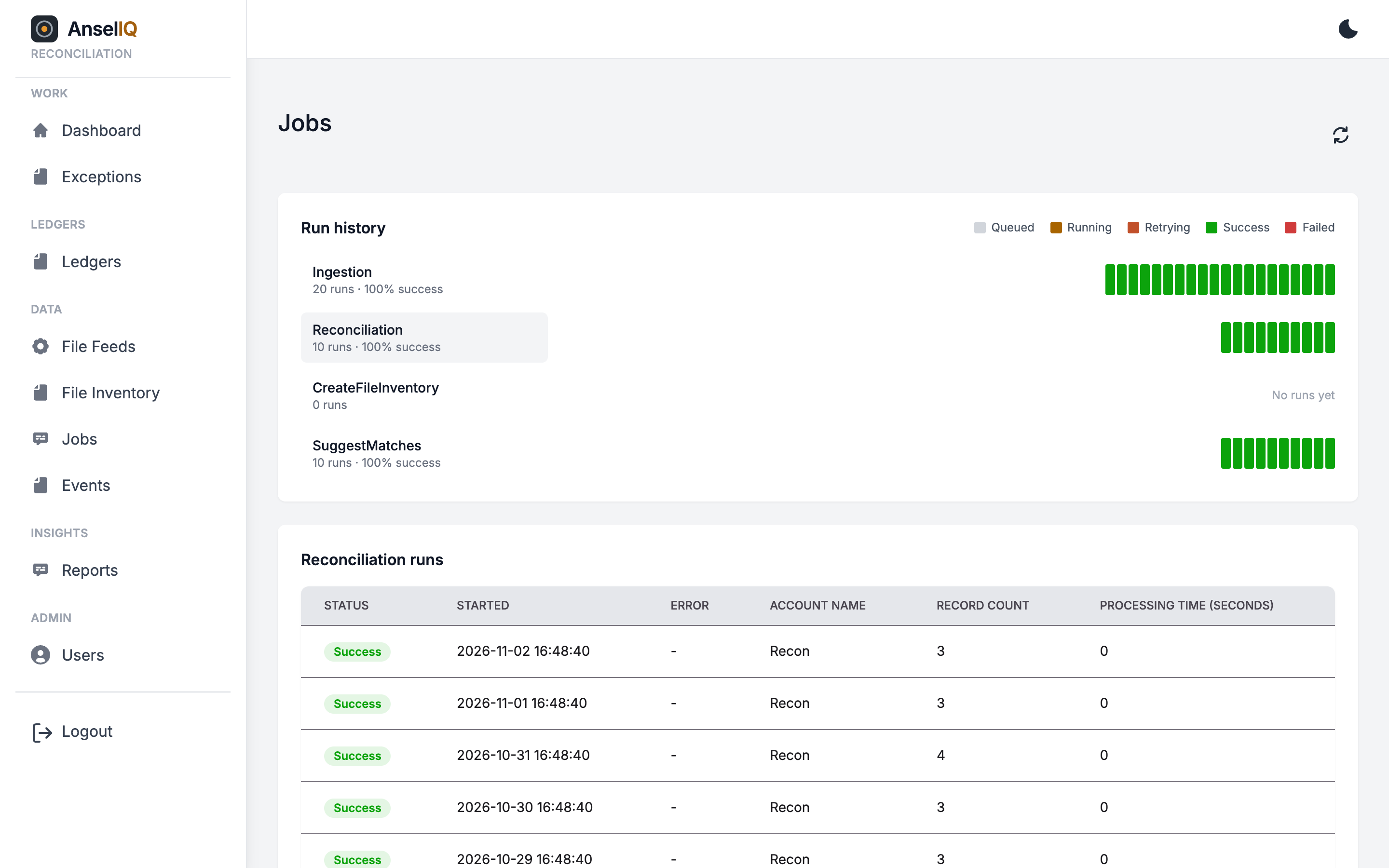
- File Feeds, File Inventory (every file found), Jobs (background work) and Events (the activity log).
- Insights
- Reports: match rates, coverage, backlog and exceptions over time.
- Admin
- Users, shown to Admins only.
Setting up a file feed
A file feed tells AnselIQ where a family of files arrives and how to read it. Create one for each source, such as one processor report and one bank statement, under Data → File Feeds → Create.
- Name
- Shown wherever the feed is picked or reported on.
- S3 Connection: Bucket and File Path
- The S3 bucket and the folder inside it where the files land. AnselIQ picks up every file in that folder. Your administrator grants AnselIQ read access to the bucket.
- Expected File Cadence (hours)
- Optional. How often a new file should arrive. If none arrives within this many hours, AnselIQ raises a FileMissing exception on the feed, which closes itself when the next file arrives. Leave it empty for feeds without a schedule.
- File Format
- One of the four formats below, and the fields to keep from each row.
File formats
For every format you choose which values to keep and the name to store each one under. Those names become the movement's properties: they're what matching rules compare and what you search on. Exactly one value must be the amount.
CSV
- Has Header Row: skip the first line.
- For each column to keep, its Column #, counting from 0 for the first column, and the Field Name to store it as.
- Mark one column as the amount. Amounts are plain decimals such as
1250.00or-31.20.
BAI2
- The standard BAI2 cash-management format from banks. The fields are fixed: account number, type code, funds type, bank reference number, customer reference number and text.
- Tick Include for each one to keep and set its stored name. The defaults are
account_number,type_code,funds_type,bank_reference_number,customer_reference_numberandtext. - The amount is read from each transaction record automatically.
JSON (one record per line)
- Each line of the file is one complete JSON document (JSON Lines), not one array covering the whole file.
- For each value, a JSON Path such as
$.transaction.customerRefand the name to store it as. Mark one as the amount.
Fixed width
- Every line has the same layout at fixed character positions, as in many bank and mainframe file specifications.
- For each field, a name and its Start and End positions. Positions start at 1 and include both ends: Start 1, End 10 is the first ten characters. Fields can't overlap.
- Define at least two fields, mark one as the amount, and tick Has Header Row if the first line is a header.
Testing a feed before going live
On the File Feeds list, Test Parser lets you upload a sample file and see how the feed's configuration reads it: the parsed rows with their stored fields and amount, and every line that failed with the reason. Nothing is saved, so try it as often as you like. Large files are cut off after their first lines, which the page tells you.
Setting up a ledger
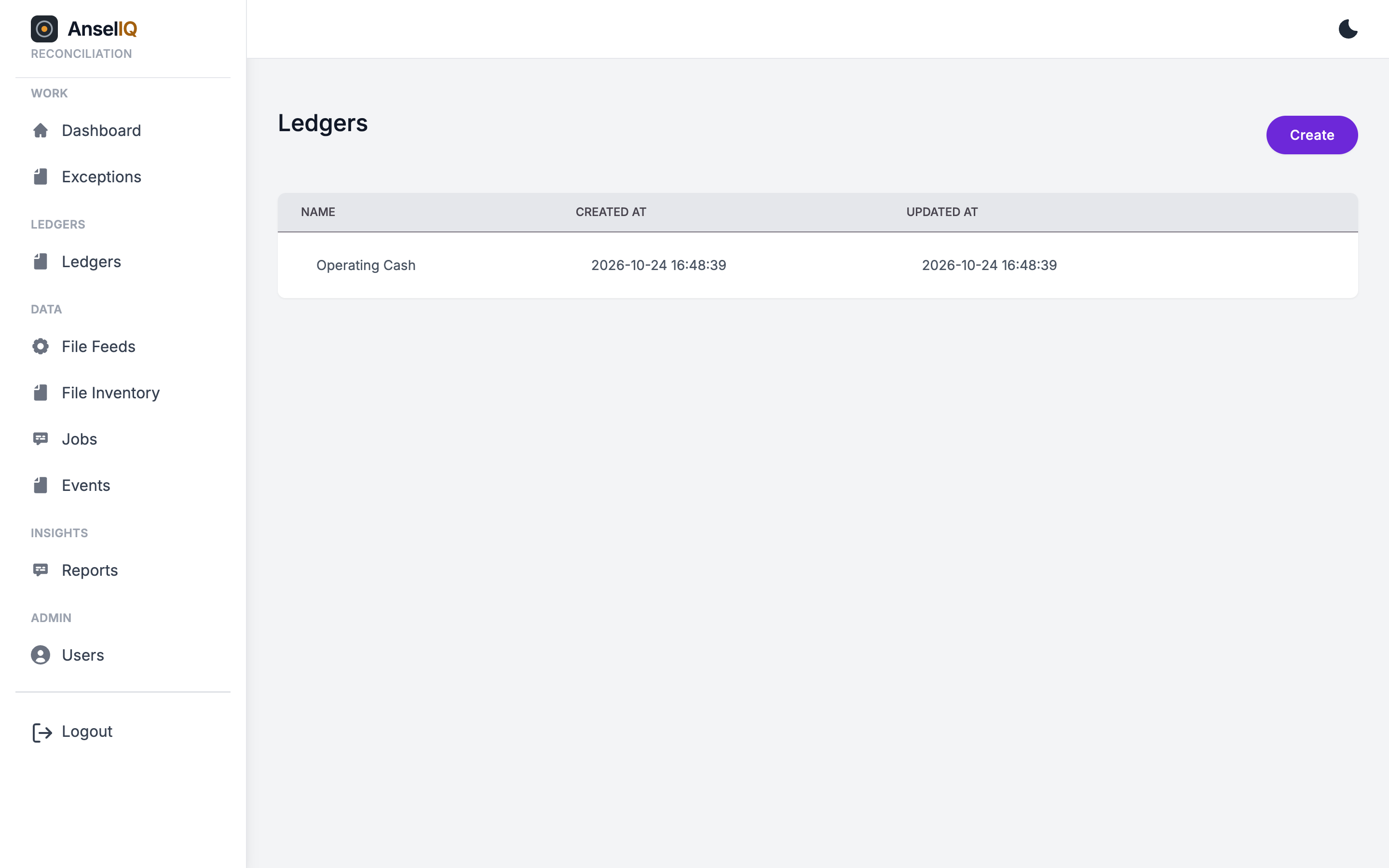
- Go to Ledgers → Create. Give the ledger a name and a Daily Report Cutoff: the hour of the day (0–23) after which the day's reporting snapshot is taken.
- Open the ledger and go to its Setup tab. The diagram shows the ledger's accounts and the links between them, with Primary accounts on the left, Recon accounts in the middle and Secondary accounts on the right.
- Add the accounts with New Account: a name and its type (Primary, Secondary or Recon). A typical ledger has one of each.
- Link each Primary and Secondary account to the Recon account. A link is a movement spec: choose the file feed whose rows post across this link, and give it a name.
Feeds that cover several accounts
Some files carry rows for several accounts, such as a BAI2 statement for every bank account
you hold. Link each of those accounts to the same feed and give each link a
Routing Filter: a field and the value it must equal, such as
account_number equals 000123456. Each row then posts only to the
link whose filter it matches. A link with no filter takes every row its feed has that no
other link claims.
Matching rules
Each Recon account has one reconciliation rule. On the account's card on the Overview tab, choose Set up (or Configure Reconciliation), then fill in:
- Primary and secondary movement spec
- The two links whose movements are matched against each other.
- Relationship
-
OneToOne: one movement on each side, such as a payout and its bank deposit.
OneToMany: one movement on one side against any number on the other, such as a settlement total and the card transactions behind it. A group that doesn't balance yet stays In progress while more of it may still arrive. - Aging Limit
- For OneToMany, how many days an In progress group may wait for the rest of its movements before it's marked Mismatched and an exception is raised.
- Reconciliation rule
- Which fields must agree, described below.
Conditions
A rule is made of conditions that compare one field from each side:
- String Match: the two fields' text is equal, such as the processor's
payout_idand the bank'sbank_reference_number. - Date Match: the two fields hold the same date, written as
yyyy-MM-dd. - And: several conditions that must all hold. Use + Add Rule to add each one.
Either side of a condition can be a fixed value instead of a field: tick Match a
constant value instead of a field. For example, match only bank rows whose
type_code is 475.
Ignoring formatting differences
Two systems often write the same reference differently. Each text field can have transforms, applied in order before the two sides are compared:
| Transform | Example |
|---|---|
| Normalize (ignore case and punctuation) | INV-2026/0042 → inv20260042 |
| Strip prefix | With prefix ACH : ACH 12345 → 12345 |
| Trim leading zeros | 000420 → 420 |
Alternatives
A rule can have alternatives: other ways for the two sides to match. They're tried in order after the main rule, each only on what is still unmatched, so adding one never changes what the rules above it match. Use them for a second reference that some rows carry, or for rules learned from AI suggestions.
Getting files in
Once a feed is linked to a ledger, AnselIQ checks its S3 folder every minute. Each new file appears in File Inventory and is ingested in the background, and the Recon accounts it touches are reconciled automatically afterwards. Large files are read in batches, and an interrupted ingestion resumes from the last line it committed.
To load a one-off file without putting it in S3, open the ledger and choose Ingest file. Pick the movement spec the file belongs to and upload it. Its feed's parser reads the file and the movements are posted to the ledger.
Running reconciliation
Reconciliation runs on its own after every ingestion. To run it now, for example after changing a rule, choose Run reconciliation at the top of the ledger. Every Recon account in the ledger is reconciled, and an interrupted run continues where it left off.
Each run:
- groups unreconciled movements whose rule fields agree into reconciliations, Final if they net to zero and otherwise Mismatched (OneToOne) or In progress (OneToMany);
- adds late movements to open OneToMany groups, closing them and their exceptions if they now balance;
- marks OneToMany groups older than the aging limit as Mismatched and raises an AmountMismatch exception for each;
- if AI matching is turned on, asks it about what's still unmatched.
Reviewing a ledger
A ledger has four tabs.
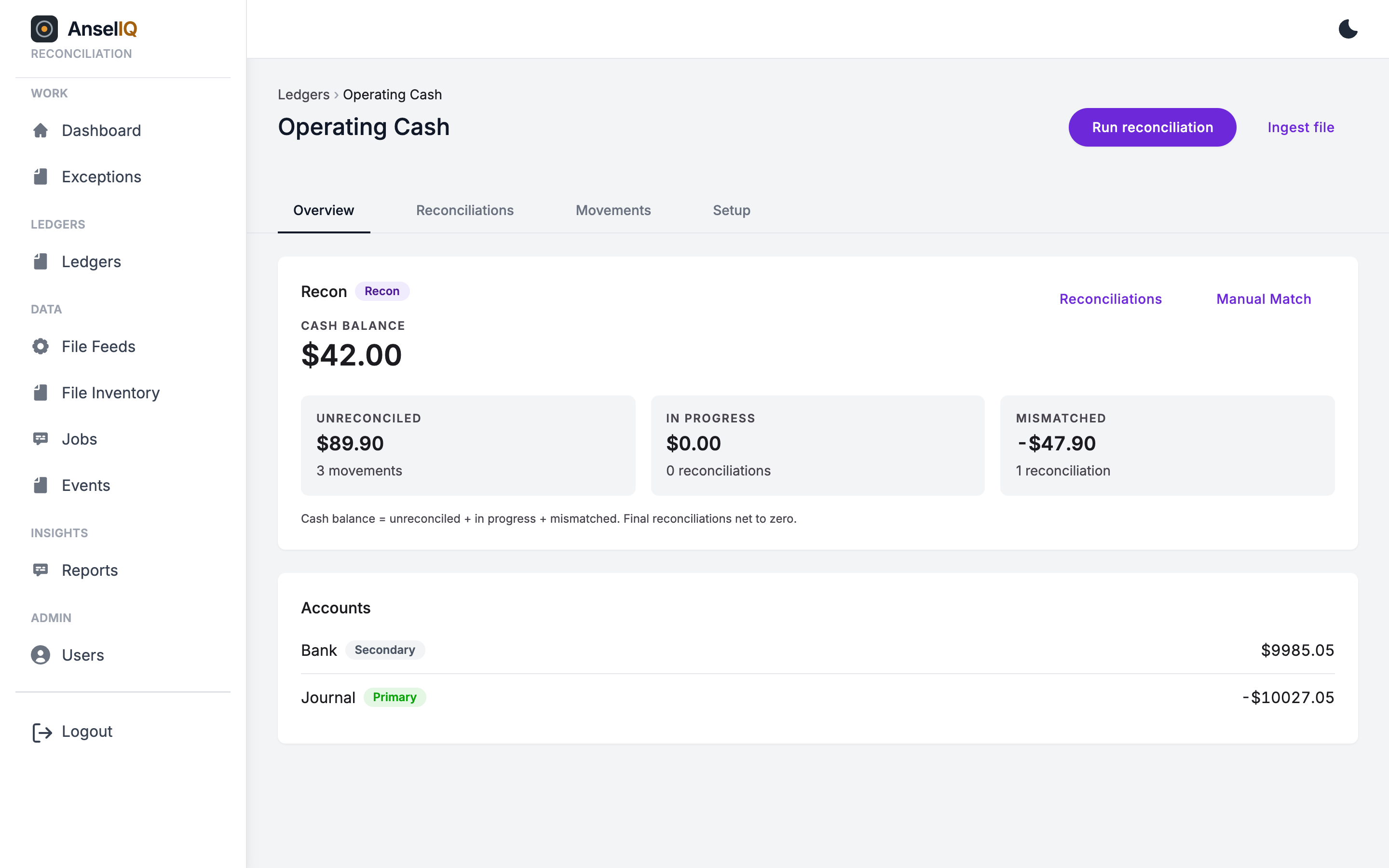
- Overview
- A card for each Recon account with its cash balance and the three figures that explain it: Unreconciled, In progress and Mismatched. Each figure opens what's behind it: Unreconciled opens a search of those movements, the other two open the matching reconciliations. The card also has Manual Match and the account's rule.
- Reconciliations
- Every reconciliation in the ledger, filtered by status.
- Movements
-
Search movements by account, whether they're reconciled, type (ingested, manual adjustment
or reversal), adjustment type and date created. Once you pick a movement spec, you can also
search on the file name and on that spec's fields, such as a particular
payout_id. - Setup
- The accounts and links described in Setting up a ledger, plus each Recon account's rule.
Opening a reconciliation shows its movements on each side, its balance and, for a mismatch, Why it doesn't balance: the primary total, the secondary total, the difference, and the exact values it Matched on. A manual match or an accepted AI suggestion says so instead. Any open exceptions appear alongside, with a link to their thread.
Resolving mismatches
A Mismatched or In progress reconciliation offers three ways forward.
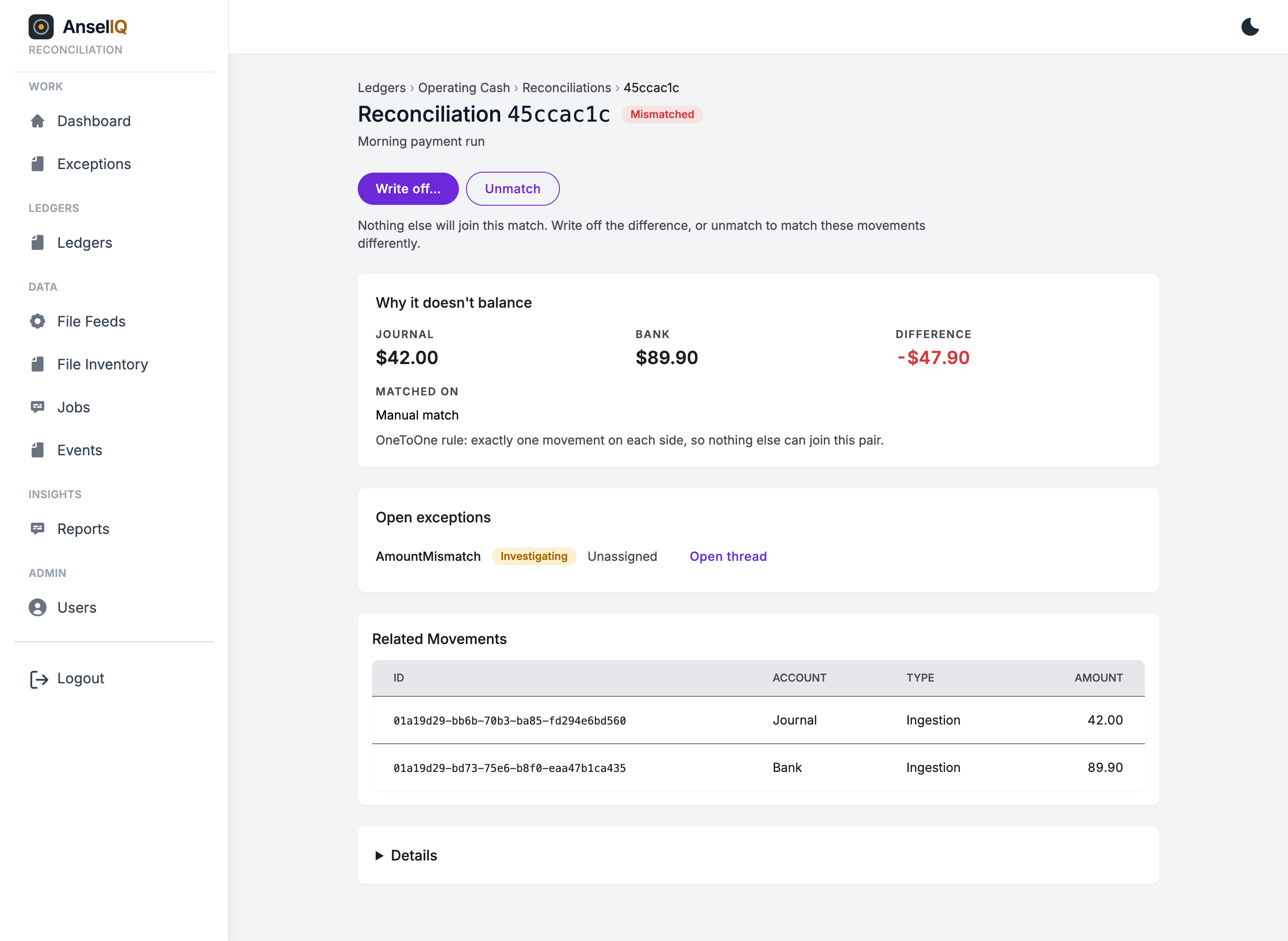
Write off
Use it when the difference is real and accepted, such as a bank fee. Choose Write off…, pick the movement to post the adjustment against and give a reason. AnselIQ posts the difference as a manual adjustment movement, the reconciliation becomes Final, and its AmountMismatch exception closes. Adjustments can be found on the Movements tab by type and adjustment type.
An Admin can undo a write-off with Reverse write-off…. AnselIQ posts a correcting entry (the original adjustment stays on the books), the reconciliation goes back to Mismatched, and a new exception is raised and linked to the old one.
Unmatch
Use it when the movements shouldn't have been matched together. The reconciliation becomes Voided and its movements return to the unreconciled pool, to be matched again by the next run or by hand. Final reconciliations can be unmatched too, except a written-off one: reverse the write-off first.
Wait
A OneToMany group can still be completed by a late movement. If one arrives that brings it into balance, the next run makes it Final and closes its exception.
Manual matching
For movements the rule can't match, open Manual Match from the Recon account's card. It lists the account's unreconciled movements on each side. Select the ones that belong together and choose Match Selected. If they don't balance, the match is saved as In progress (OneToMany) or Mismatched (otherwise), and you resolve it like any other.
AI match suggestions
When your administrator has turned on AI matching, AnselIQ looks at what each run left unmatched and suggests likely pairs, such as an invoice number the bank reformatted. The model runs inside your own environment. Suggestions are made for OneToOne rules, only between movements with the same amount created within a few days of each other.
Suggestions appear under Suggested matches on the Manual Match page, each with a confidence and a reason. When the model can show exactly why the two references are equal, the explanation is checked against the movements and shown as well. Accept matches the pair exactly as a manual match would. Reject records that they don't belong together, and that pair isn't suggested again. Who reviewed each suggestion is recorded.
Learned rules
When the same explanation has been behind several accepted suggestions, the rule form offers it under Learned from accepted suggestions, with how many suggestions it explained and how many unmatched pairs it would match now. Choose Add as alternative and those pairs match automatically from then on, without the AI.
Working exceptions
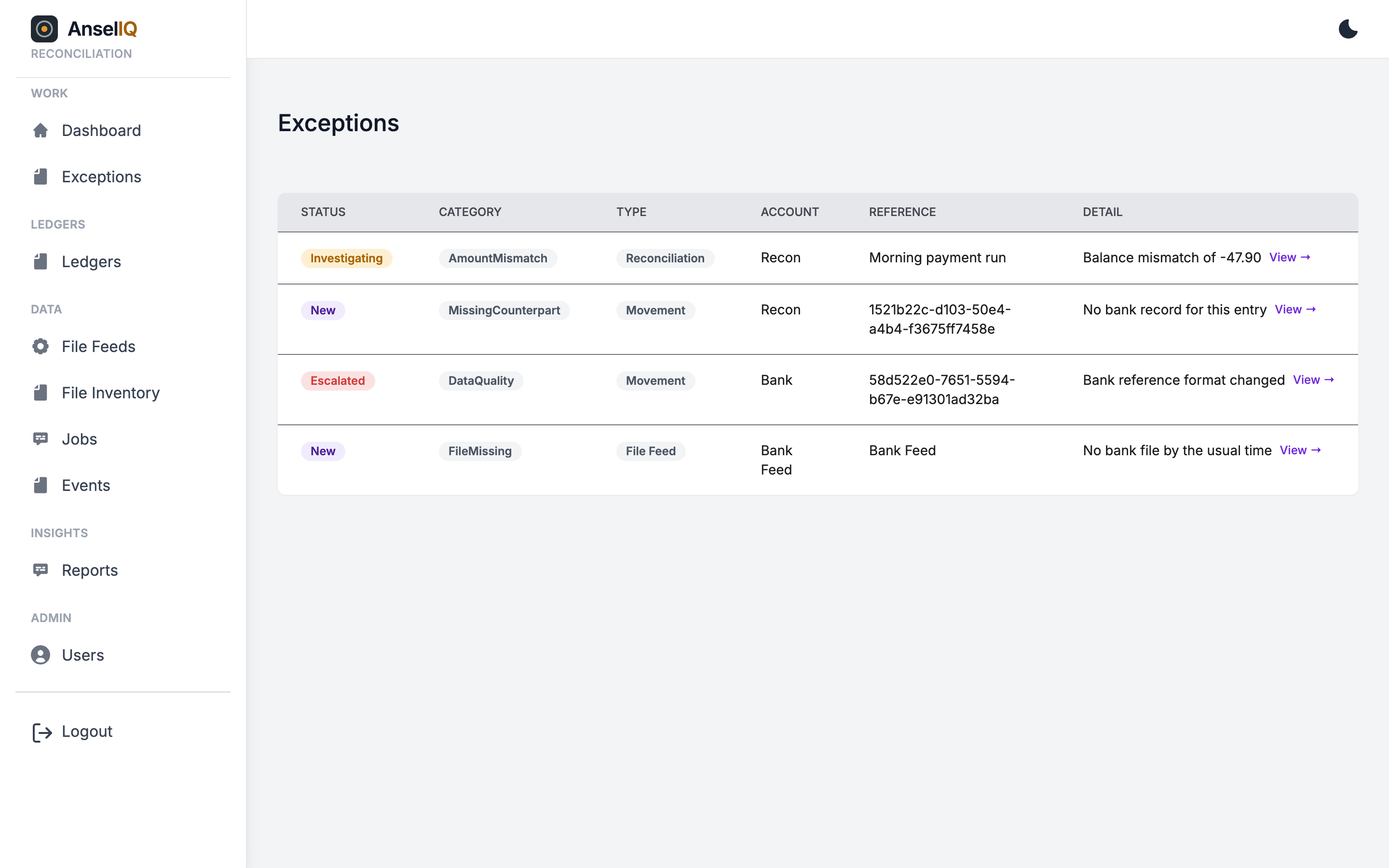
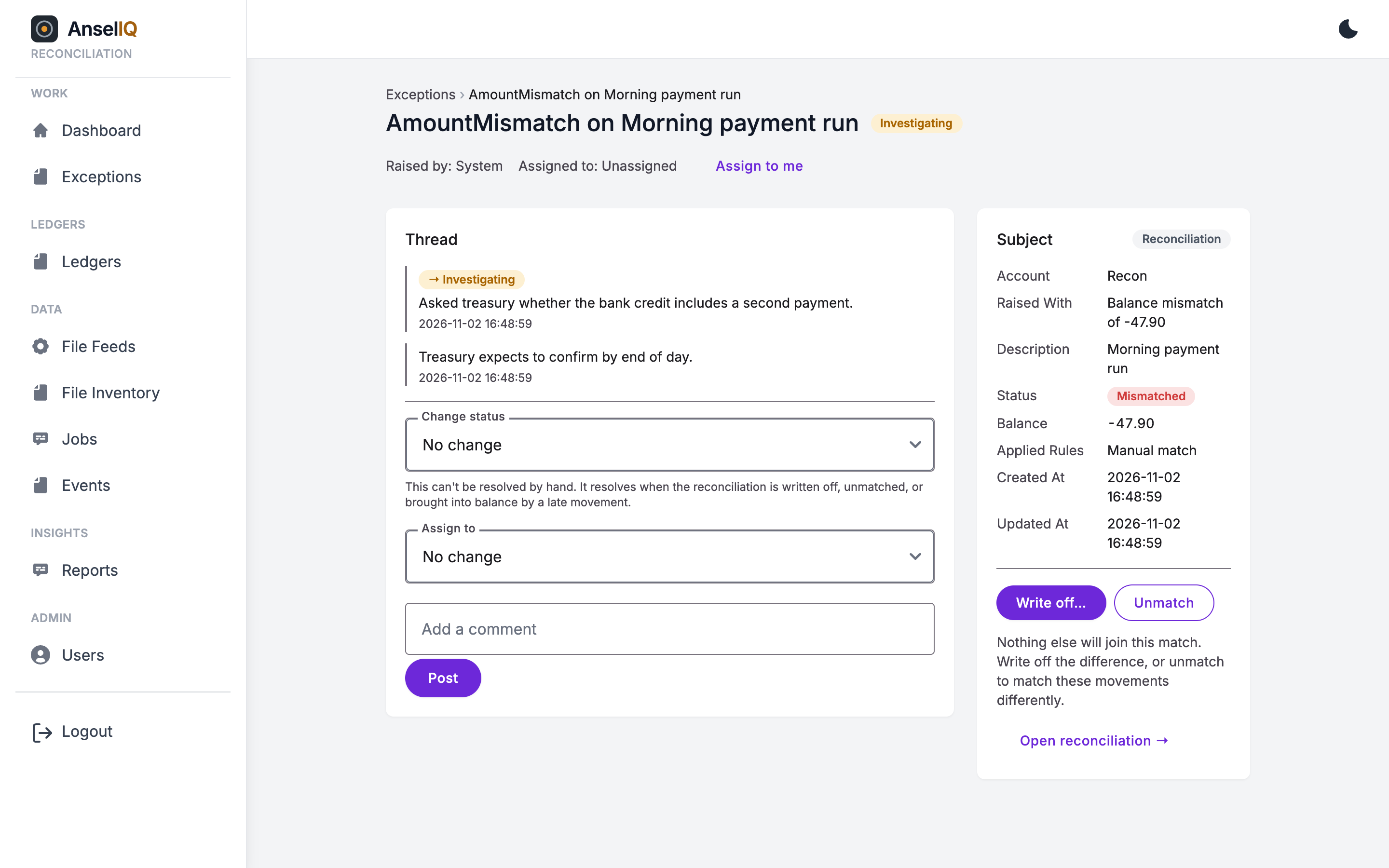
The Exceptions page lists every exception, with what it's about and its status. Open one to see the movement, reconciliation or feed it concerns, with a link to it, and its thread.
From an exception's page you can:
- Assign to me, or assign it to someone else.
- Change its status between New, Investigating, Escalated and Resolved.
- Comment. A comment is required to post without a status change or reassignment, and to resolve.
To raise an exception yourself, open a movement and choose a category: Missing counterpart, Duplicate, Timing difference or Data quality, with an optional detail.
Fixing a bad file
If a file was ingested with the wrong configuration, such as the wrong column marked as the amount, an Admin can undo it. On File Inventory, choose Fix bad ingest… on the file's row. Preview shows what will change, and Confirm posts a reversing entry for each of the file's movements and voids the reconciliations they were in. Nothing is deleted. Correct the feed, then ingest the file again.
Reports
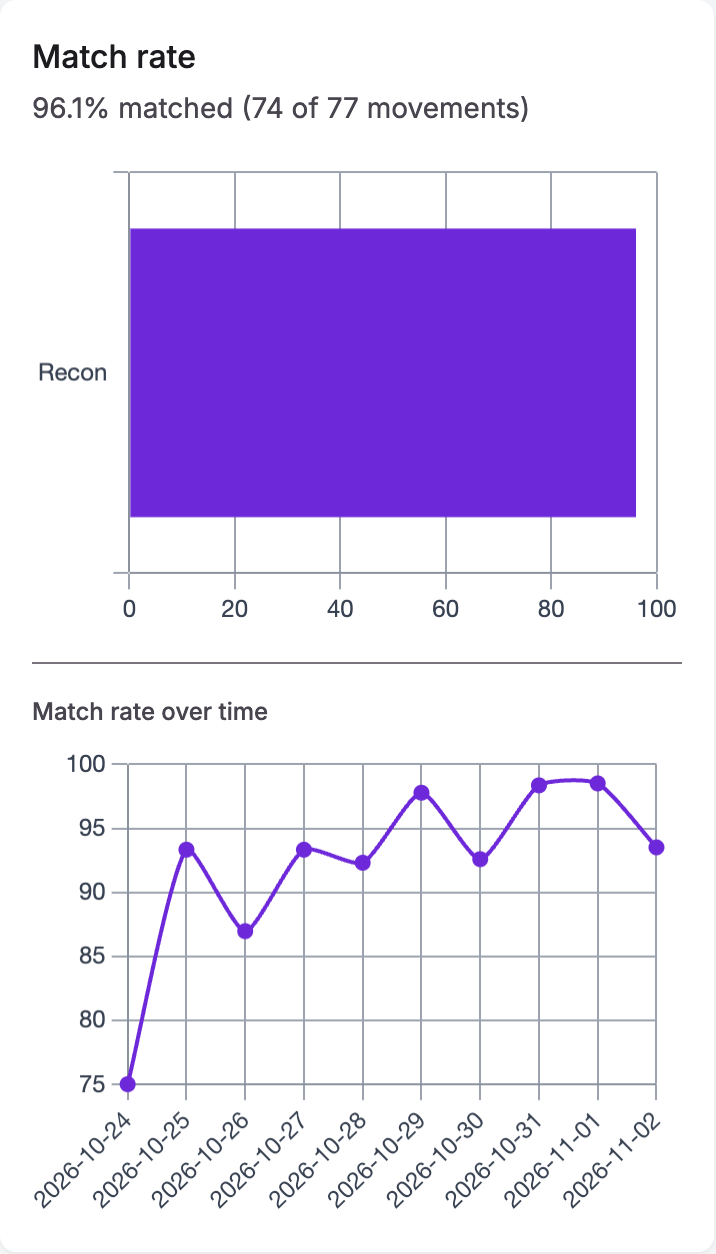
Reports shows reconciliation health for all ledgers or one. Trends come from a daily snapshot of each ledger, taken after its daily cutoff hour.
- Balance coverage: how much of each Recon account's balance is reconciled, and over time.
- Match rate over time.
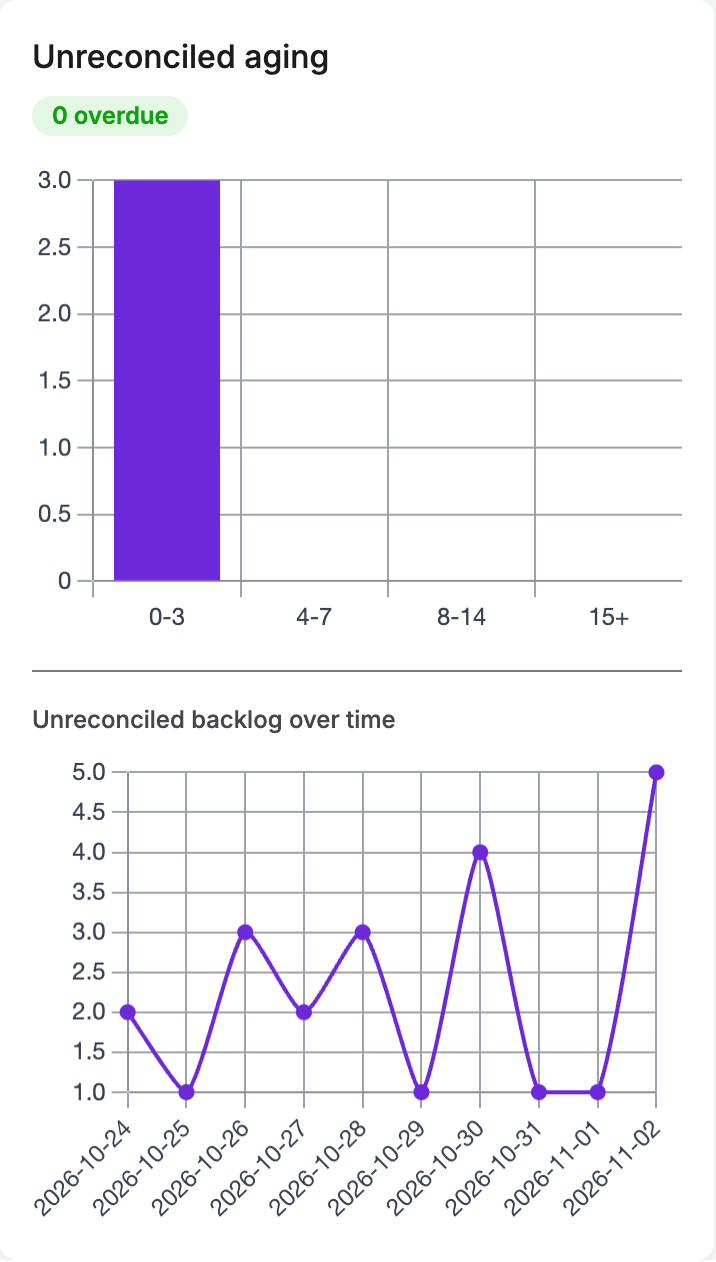
- Unreconciled aging: how long unreconciled movements have waited, and how many are past their rule's aging limit.
- Unreconciled backlog over time.
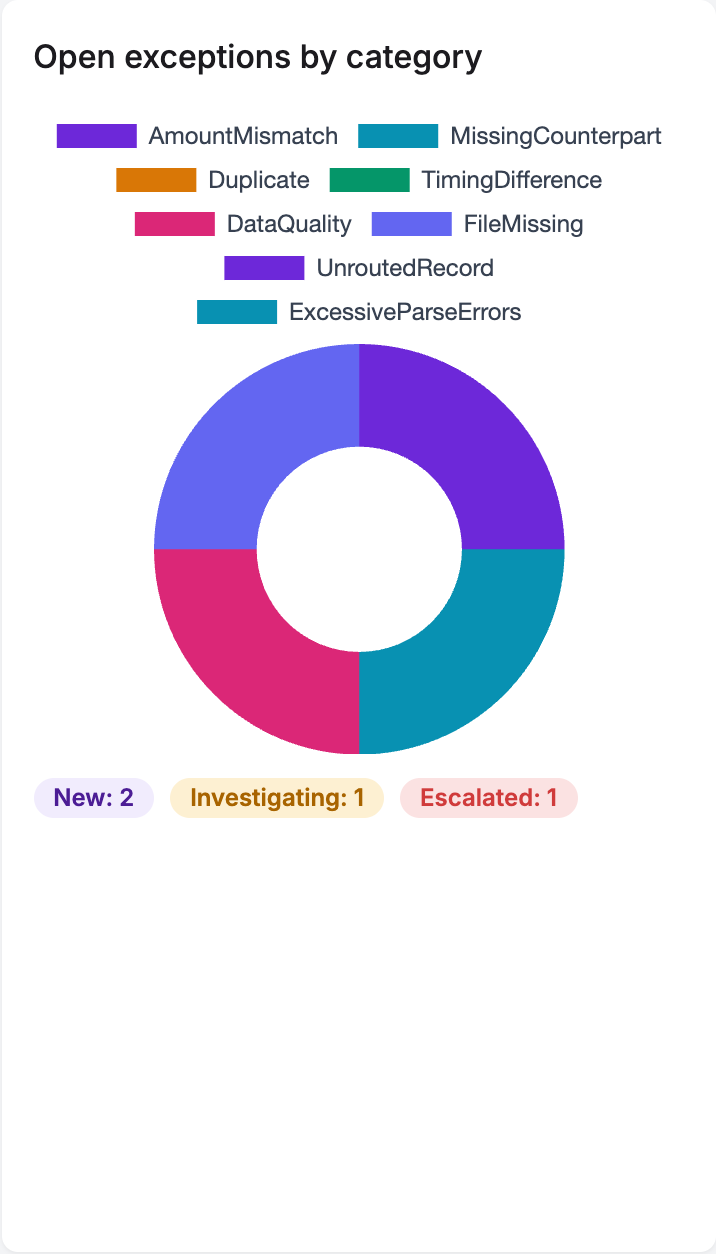
- Open exceptions by category and over time.
Jobs, events and file inventory
- File Inventory
- Every file found on every feed: its size, when it was last modified, its status (QUEUED, PROCESSING or COMPLETED), when it was processed and the last line read.
- Jobs
- The background work: ingestions, reconciliations, file scans, daily reporting snapshots and AI suggestions, with each job's status, attempts and any error. A failed job is retried automatically before it's marked as an error.
- Events
- The activity log: files detected and ingested (with record counts and timings), accounts reconciled, manual matches, unmatches, write-offs and their reversals, and exception changes.
Managing users
Admins manage users under Admin → Users: create a user with an email, name, role and password (at least 8 characters), change a role, deactivate a user who has left with Active, or Reset Password. The first Admin is created when AnselIQ is installed.